Teleprompter for Zoom, Teams and Google Meet
Read your notes right under the webcam, keep eye contact, and share only your slides. Callers see you and your content, never the script.
Open the app · FreeSee pricing
- Hidden from the call
- Under the webcam
- No virtual camera
Video calls
Notes under the camera, not on the call.
Float the script in a slim strip right under your webcam and share one window. Callers see your slides and your eyes, never your notes, and nothing touches your camera.
Share one windowReady for the call in three steps
Float it under the webcam
Paste your notes, choose Float over other apps and drag the strip right under the camera. On a MacBook, that is just under the notch.
Share one window
Share your slides window or a single tab. Never share the entire screen, or the script goes with it.
Read the top line
Keep your eyes on the line nearest the camera. Pause when the conversation goes off script; press play to carry on.
Our take, worked out
One rule, one number worked out for this setup, and what we would not spend money or time on.
The rule
Share a window, never the screen
A whole-screen share sends everything, floating notes included. Share your slides window or one tab and the notes stay yours.
Worked out
14°
How far your eyes drop when you read from the middle of a laptop screen, 15 cm below the camera at 60 cm. Reading in a strip right under the webcam brings that to about 2°.
What we would skip
- Virtual-camera teleprompter plug-ins. They add lag and can break your call app's camera.
- Full scripts for a conversation. Use short prompts and pause while others talk.
- Notes on paper beside the laptop: about a 30° glance away every time.
Watch it on a call
Ten seconds: the script floats under the camera and stays on top of the call.
Transcript
On a Mac, float it right under the camera. It stays on top of Zoom, Teams or your slides, and callers never see it.
What callers never see
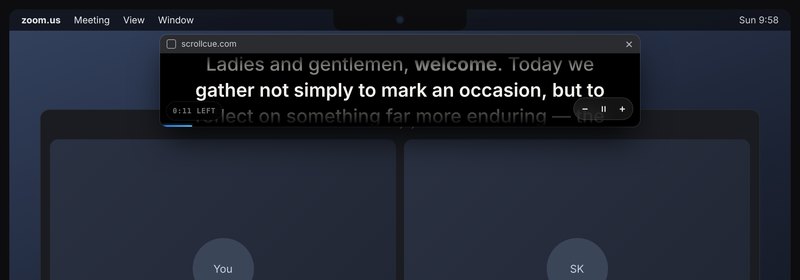
Your notes float in a slim strip right under the webcam. Share one window and this stays on your screen only.
4 topics
The floating notes window
A small always-on-top strip that sits under your webcam while the call app, slides and chat stay in front.
01How do I keep notes on top during a Zoom call?02Safari03Google Meet in Chrome04Does a teleprompter need a virtual camera for Zoom?Read the full guideShow less
How do I keep notes on top during a Zoom call? #
In Chrome or Edge, use Float over other apps and drag the strip under your webcam.
Choose Float over other apps from the menu. ScrollCue opens a slim black strip that stays above every other app. Drag it under the camera and resize it from the edges; the browser remembers the size. Hover over it for play, pause and speed, and the time left.
Safari #
A floating video of the script.
Safari floats the script as a picture-in-picture video. Its play and pause button pauses and resumes the script, and it stays on top like any picture-in-picture video.
Google Meet in Chrome #
Or use the side panel.
Calling from a Chrome tab? The ScrollCue Chrome extension puts the script in Chrome's side panel right beside Meet. Share a tab rather than a window, so the panel stays off the call.
Does a teleprompter need a virtual camera for Zoom? #
No. ScrollCue leaves your camera alone; the call app sees your normal webcam.
ScrollCue does not install a virtual camera or change your video. Your call app sees your normal webcam, with your usual background and filters. Keep ScrollCue's own camera background off during a call so the call app has the camera to itself.
How much eye contact you keep
Callers notice when your eyes drop. The angle depends on how far below the camera you read, measured from about 60 cm away.
| Where you read | Distance below the camera | Eye drop, about |
|---|---|---|
| Floating strip right under the webcam | 2 cm | 2° |
| Top quarter of a laptop screen | 6 cm | 6° |
| Middle of a laptop screen | 15 cm | 14° |
| Notes on the desk beside the laptop | 35 cm | 30° |
Angle = arctan(distance below the camera ÷ 60 cm). A drop of a few degrees still reads as eye contact on a small call tile; see teleprompter numbers for the research.
2 topics
Chat and Q&A beside your notes
Hosting a webinar or a big meeting? Show the chat or Q&A window in a panel next to your script and read questions without losing your place.
01Can I see webinar Q&A while reading notes?02Which windows workRead the full guideShow less
Can I see webinar Q&A while reading notes? #
Yes. Choose Window beside script and pick the Q&A window; it shows next to your notes.
Pop the chat or Q&A out into its own window where your app allows it, or open your Q&A tool in a browser tab. In ScrollCue choose Window beside script and pick it. The questions appear in a panel beside your notes, and you can move it left or right or change its width.
Which windows work #
Anything you can open in a window or tab.
- Meeting and webinar chat: a Zoom, Microsoft Teams or Webex chat or Q&A window you have popped out.
- Q&A and polling tools: Slido, Mentimeter or a similar tool open in a browser tab.
- Your own notes: a run of show, a CRM record on a sales call, or a teammate's messages in Slack.
Keep sharing only your slides window with attendees. The panel is on your screen, not in the share.
4 topics
Calls that go better with notes
A teleprompter is not only for speeches. These calls benefit most.
01Can I use a teleprompter for sales calls?02Should I use a teleprompter in a video interview?03Presentations and webinars04Recorded video messagesRead the full guideShow less
Can I use a teleprompter for sales calls? #
Yes. Put each part of the pitch in its own section and jump to it when it comes up.
Put the pitch in sections: ## Problem, ## Demo, ## Pricing, ## Next steps. Jump to pricing the moment it comes up, and keep objection answers in their own sections to jump to when needed.
Should I use a teleprompter in a video interview? #
Use short prompts for your stories rather than full answers, so you still sound natural.
Write short prompts for your examples rather than full answers, so you sound natural. Keep the company's name, the role and your questions for them in view. Pause the scroll while the interviewer talks.
Presentations and webinars #
Notes over your own slides.
Mark each slide as a ## section so the notes keep step with the deck. For bigger events, the corporate events guide covers operators, several speakers and confidential scripts.
Recorded video messages #
Record in ScrollCue instead.
For a recorded update rather than a live call, record inside ScrollCue with your camera behind the script: free in 720p, 1080p on Pro. See recording and YouTube.
8 questions
Questions, answered
Short answers to what people ask before they press play.
01Can people on Zoom see my teleprompter?02Is there a teleprompter for Microsoft Teams?03Can I use a teleprompter on Google Meet?04Can I see the chat or Q&A while reading my notes?05Does ScrollCue need a virtual camera?06How do I keep eye contact while reading notes?Read all answers · 2 more answersShow less
Can people on Zoom see my teleprompter? #
No, as long as you share a single window or your slides instead of your entire screen. The floating script stays on your screen only.
Is there a teleprompter for Microsoft Teams? #
Yes. ScrollCue runs in your browser next to Teams. Float the script under the webcam and share only your presentation under Window in Teams' Share menu.
Can I use a teleprompter on Google Meet? #
Yes. Present A window or A tab rather than Your entire screen, and keep the script floating under your camera.
Can I see the chat or Q&A while reading my notes? #
Yes, with Pro. Pop the chat or Q&A out into its own window, or open your Q&A tool in a tab, then choose Window beside script in ScrollCue. It shows in a panel next to your notes.
Does ScrollCue need a virtual camera? #
No. It does not touch your camera feed; your call app sees your normal webcam.
How do I keep eye contact while reading notes? #
Put the notes right under the webcam. Reading 2 cm below the camera drops your eyes about 2°, which callers read as eye contact; reading from the middle of a laptop screen drops them about 14°.
What happened to Skype? #
Microsoft retired Skype on 5 May 2025 and moved users to Microsoft Teams. The same setup works in Teams.
Is it free? #
Yes. The prompter and the floating window are free with no account and no watermark. Voice followVoice follow. A prompter mode that listens to you and scrolls to match your speech, holding its place when you pause or paraphrase. In ScrollCue it runs on your device and is part of Pro. is free for 5 minutes per script and unlimited on Pro.