Teleprompter Chrome extension
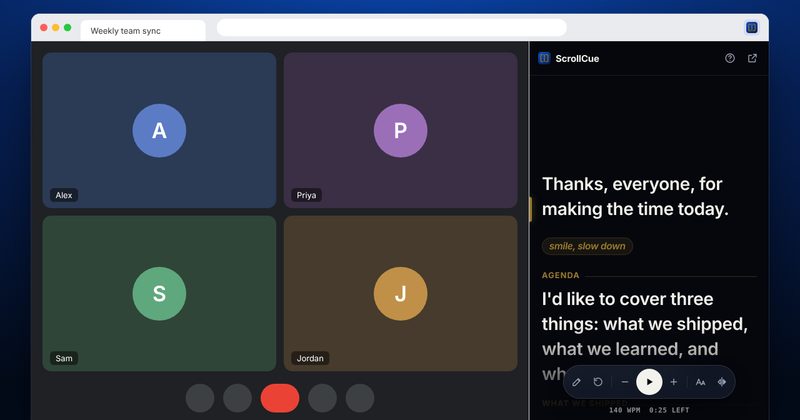
Read your script in Chrome's side panel, right beside Google Meet, a browser recorder or any tab. Paste once, press play, and the words scroll at your speaking pace.
Open the app · FreeGet the extension
- Free
- No account
- Nothing uploaded
Chrome extension
A teleprompter one click from any tab.
Click the toolbar icon and your script opens in Chrome's side panel, beside Meet, a recorder or your slides. Right-click any text on a page to read it there.
See it beside a callStart reading in three steps
Pin the icon
Open Chrome's puzzle-piece menu and pin ScrollCue, so it sits in the toolbar.
Open the side panel
Click the icon, or press Alt+Shift+S, on the tab you want to read beside. The panel stays open as you switch tabs.
Paste and play
Paste your script and press play. ↑ and ↓ change the speed, and the time left shows under the controls.
Our take, worked out
One rule, one number worked out for this setup, and what we would not spend money or time on.
The rule
Share the tab, not the window
A tab share sends only that page. A window or whole-screen share sends the side panel too, script and all.
Worked out
4.3 s
How long a 10-word line takes to pass the gold bar at 140 words per minute: 10 ÷ 140 × 60. Time enough to look at the call and back without losing your place.
What we would skip
- The side panel for the Zoom or Teams desktop apps. It only sits beside Chrome tabs; use the web app's floating window.
- Full-screen slide presenting with the panel. Full screen hides it; present from the web app instead.
- Tiny text to fit more on screen. Two or three short lines at a large size read faster.
Your script, beside the tab
The prompter lives in Chrome's own side panel. Shrink the call or the recorder a little and read right next to it.
Extension or full app?
The extension is the quick prompter beside a tab. The web app does everything else, and the extension hands your script to it in one click.
| Feature | Chrome extension | Web app |
|---|---|---|
| Script beside any Chrome tab | Yes, in the side panel | In its own tab or window |
| Read selected text from a page | Yes, right-click | Paste it in |
| Speed, size, mirror, sections, notes | Yes | Yes |
| Float over other apps (Zoom, Teams, OBS) | No, Chrome only | Yes, in Chrome and Edge |
| Voice followVoice follow. A prompter mode that listens to you and scrolls to match your speech, holding its place when you pause or paraphrase. In ScrollCue it runs on your device and is part of Pro. | No | Yes: 5 minutes free per script, unlimited on Pro |
| Record video behind the script | No | Yes: 720p free, 1080p on Pro |
| Phone remote and presenter view | No | Pro |
| Phones and tablets | No, desktop Chrome | Yes, any browser |
Click the ↗ icon at the top of the panel to open the same script in the web app. The script travels in the link's # fragment, which browsers never send to a server.
5 topics
Where it helps most
Anything you do in a Chrome tab while you talk.
01Can I use a teleprompter beside Google Meet?02Recording in the browser03Rehearsing a talk04Can I read text from any web page in a teleprompter?05ChromebooksRead the full guideShow less
Can I use a teleprompter beside Google Meet? #
Yes. Open the side panel next to Meet and share a tab, not a window, so the script stays off the call.
Open Meet, or Zoom or Teams in the browser, then open the panel. When you present, share A tab, such as your slides tab. A tab share never includes the side panel, but a window or whole-screen share does. For calls in the Zoom or Teams desktop apps, use the web app's floating window instead, since the side panel only sits next to Chrome tabs.
Recording in the browser #
Webcam recorders and YouTube Studio.
Many recorders run in a Chrome tab. Put the panel on the right, keep your eyes near the top of the screen, and read the line beside the gold bar. Move the panel to the left in Chrome's settings if your webcam sits off to that side. To record with the script over your camera, use the web app's built-in recorder.
Rehearsing a talk #
Notes next to your slides.
Open your slides in one tab and the panel beside them. Mark each slide as a ## section, add reminders in [[double brackets]], and run the talk at your real pace. Full-screen presenting hides the side panel, so present from the web app or the speaker setup on the day.
Can I read text from any web page in a teleprompter? #
Yes. Select it, right-click and choose Read selection in ScrollCue.
Select a paragraph on any page, right-click and choose Read selection in ScrollCue. The panel opens with that text ready to scroll, line breaks kept. Useful for voice-overs, language practice and reading articles aloud.
Chromebooks #
Same panel on ChromeOS.
The extension runs in Chrome on ChromeOS, so a Chromebook gets the side-panel prompter beside Meet or a recorder with nothing else to install.
2 topics
What it can and can't see
The extension asks for as little as it can, and makes no network requests at all.
01Does the teleprompter extension upload my script?02What permissions does the ScrollCue extension need?Read the full guideShow less
Does the teleprompter extension upload my script? #
No. It's stored on your computer and the extension makes no network requests.
The script, speed and text size are kept in the extension's own storage on this computer. There is no account, no sync and no server. Its security policy blocks the panel from making any network request, so nothing could be sent even by mistake. Read the privacy policy.
What permissions does the ScrollCue extension need? #
Side panel, storage, context menus, and active tab with scripting for reading text you select. It has no access to your sites otherwise.
- Side panel: shows the prompter in Chrome's side panel.
- Storage: remembers your script and settings on this computer.
- Context menus: adds Read selection in ScrollCue to the right-click menu.
- Active tab and scripting: when you choose that menu item, reads the text you selected on that one tab, so line breaks are kept. Nothing runs on a page until you click it.
The extension can't read your pages on its own: it has no access to any site until you right-click selected text.
3 topics
Install and shortcuts
Works in Google Chrome 116 or newer on Windows, Mac, Linux and ChromeOS.
01Install from the Chrome Web Store02Can I control the Chrome teleprompter with a clicker?03Script markupRead the full guideShow less
Install from the Chrome Web Store #
One click, no sign-up.
The extension is on its way to the Chrome Web Store. Until it's listed, the web app does everything the extension does in its own tab, plus the floating window that sits over other apps.
Can I control the Chrome teleprompter with a clicker? #
Yes. Page Down and Page Up jump ahead and back, and Space plays or pauses.
- Space plays or pauses; ↑ ↓ change speed by 10 words per minute.
- + − change text size; M mirrors the text; Home goes back to the start.
- Page Down and Page Up jump ahead or back, so most presentation clickers work.
- Alt+Shift+S opens the panel. Change it at
chrome://extensions/shortcuts.
Script markup #
The same as the web app.
Start a line with ## to make a section label. Put private reminders in [[double brackets]]; they show as small gold notes and are left out of the word count and time left.
8 questions
Questions, answered
Short answers to what people ask before they press play.
01Is there a teleprompter extension for Chrome?02Can I use a teleprompter with Google Meet?03Does the extension work with the Zoom or Teams desktop apps?04Is the teleprompter extension free?05Does the extension upload my script?06Can I read text from a web page in the teleprompter?Read all answers · 2 more answersShow less
Is there a teleprompter extension for Chrome? #
Yes. ScrollCue's free extension puts a teleprompter in Chrome's side panel, beside any tab, with no account.
Can I use a teleprompter with Google Meet? #
Yes. Open the side panel next to Meet and read while you talk. If you present, share a tab rather than a window or your entire screen, so the side panel stays off the call.
Does the extension work with the Zoom or Teams desktop apps? #
No. The side panel sits next to Chrome tabs only. For the desktop apps, use the web app's Float over other apps window, which stays on top of any app.
Is the teleprompter extension free? #
Yes. The extension is free with no account, no watermark and no time limit.
Does the extension upload my script? #
No. The script is kept in the extension's storage on your computer, and the extension makes no network requests.
Can I read text from a web page in the teleprompter? #
Yes. Select the text, right-click and choose Read selection in ScrollCue. The panel opens with it ready to scroll.
Does it work on a Chromebook? #
Yes. It runs in Chrome on ChromeOS, as well as on Windows, Mac and Linux.
Can I mirror the text for a teleprompter glass? #
Yes. Press M or the mirror icon. For a glass rig, the web app on a tablet is usually the better fit; see the hardware guide.