How to set up a browser teleprompter for video and live calls
Step-by-step setup for Mac, Windows, Zoom, OBS and recording, plus the on-camera habits that make reading look natural.
Open the app · FreeSee pricing
- Mac & MacBook
- Windows
- Zoom, Teams, Meet
- OBS
Quick answer
To use a teleprompter on a video call, open ScrollCue in a narrow window directly under your webcam, put the cue lineCue line. A fixed marker near the top of the prompter that shows which line to read. Keeping it close to the lens keeps your eyes close to the camera. near the top and read from there, so your eyes stay within about 2° of the lens. Share a window or your slides, never the whole screen, so others do not see the script. It works the same on Mac and Windows with Zoom, Teams, Meet and OBS.
- Window
- Narrow, right under the webcam
- Share
- A window, not the whole screen
- Gaze angle
- About 1.8° at 65 cm
- Apps
- Zoom, Teams, Meet, OBS
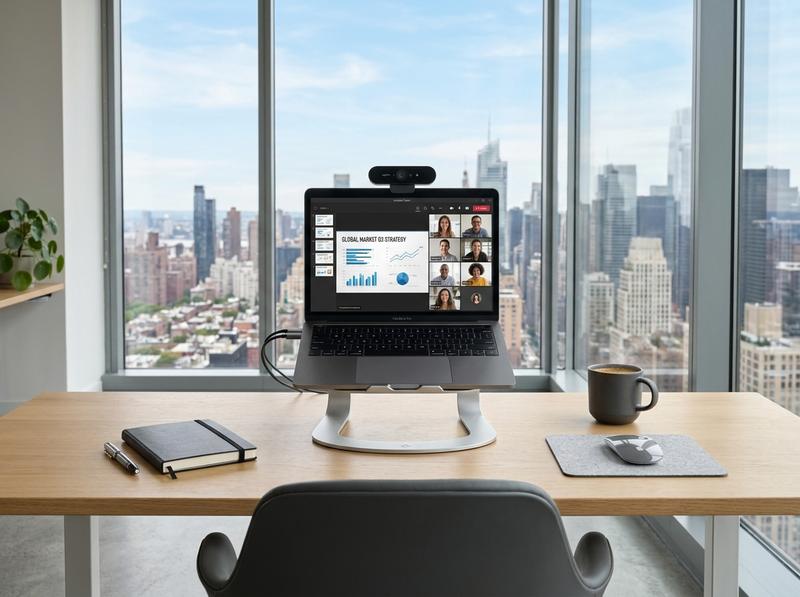
Video calls
Your notes under the camera, not on the call.
Put ScrollCue in a narrow strip right under your webcam and share only your slides or one window. You read every word while looking at the lens, and nobody on Zoom, Teams or Meet sees your script.
Set up for a callJump to your setup
Our take, worked out
One rule, one number worked out for this setup, and what we would not spend money or time on.
The rule
The 1-in-30 rule
However your desk is laid out, keep the line you read within one thirtieth of your distance from the camera. At 65 cm that is about 2 cm; at 1 m it is about 3 cm.
Worked out
15.7°
Reading from the middle of a 27-inch monitor at 65 cm puts the text about 18 cm below a webcam on top, a gaze angleGaze angle. The angle between where you look and the camera lens. Under about 2° viewers read it as eye contact; reading 2 cm below the lens from 65 cm away gives about 1.8°. of roughly 15.7°. That is the "obviously reading notes" zone. Move the same text into a strip right under the camera and it drops below 2°.
What we would skip
- Notes in the middle of the screen during a call. It is the most common reason people look like they are reading.
- Speaker notes on a second monitor. See the one-screen ruleOne-screen rule. Put the script on the same screen as the camera you look into, never on a screen beside it. A side monitor 40 cm away, read from 65 cm, is a gaze angle of about 31.6°, around 18 times the angle of a script 2 cm under the webcam.: the script belongs on the screen with the camera.
- Tiny text to fit more words. Five to eight words a line, bigger, reads more naturally.
2 topics
Teleprompter for Mac and MacBook
On a MacBook the camera sits in the notch, so the script goes in a narrow strip right under it. The full guide is Teleprompter for MacBook.
01The short version02How do I use a teleprompter with a webcam on a Mac?Read the full guideShow less
The short version #
Strip under the notch, cue line at the top.
- Open scrollcue.com/app in Safari or Chrome and paste your script.
- Resize the window to about a third of the screen wide and drag it to the top centre, under the camera.
- Move the cue line near the top, press play, and share only a window on calls.
Full screen, Stage Manager, Continuity Camera and external displays are covered in the MacBook guide.
How do I use a teleprompter with a webcam on a Mac? #
Put the ScrollCue strip at the top of the monitor, right under the webcam. For a camera on a tripod, use a glass rig.
With a webcam on top of an external monitor, put the ScrollCue strip at the top of that monitor. If the camera sits on a tripod in front of the screen, use a glass rig instead; see the hardware guide. For mounting, lighting and cables, see the home desk setup.
3 topics
Teleprompter for Windows
Windows laptops put the webcam at the top of the bezel. Put the script directly below it.
01How do I use a teleprompter on Windows?02Windows tablets03External webcams on WindowsRead the full guideShow less
How do I use a teleprompter on Windows? #
Open ScrollCue in Chrome or Edge and put a narrow window right under the webcam. Nothing to install.
Open scrollcue.com/app in Chrome or Edge. Snap or resize the window into a strip across the top centre of the screen, just under the webcam, and move the cue line to the top.
- Press F11 for browser full screen when you want the script to fill the display.
- Use Windows + arrow keys or Snap Layouts to dock the call window below the prompter.
- To install ScrollCue as an app, use the install icon in the address bar or Edge's Apps › Install this site as an app.
Windows tablets #
Surface and other 2-in-1s.
On a Surface or other Windows tablet, use the camera on the long edge in landscape and keep the prompter strip directly under it. In portrait for a glass rig, turn on Mirror and lock rotation in quick settings.
External webcams on Windows #
Logitech, Elgato Facecam and others.
Mount the webcam at the top centre of the monitor you look at and put the script under it. If an Elgato camera stops showing up, see the Camera Hub fix guide.
4 topics
Teleprompter for Zoom, Teams and Meet
Read your notes on a call without anyone seeing them. The rule that makes it work: share a window, not your whole screen.
01How do I use a teleprompter on Zoom, Teams or Meet?02A 10 o'clock call, minute by minute03Present over your slides04Phone under the webcamRead the full guideShow less
How do I use a teleprompter on Zoom, Teams or Meet? #
Put ScrollCue in a narrow window under the webcam and share only your slides or one window, never the whole screen.
- Open ScrollCue and paste your talking points. Mark each topic with
##so you can jump to it if someone asks a question. - Resize the window into a strip and place it right under your webcam, with the cue line near the top.
- Join the call and share only your slides or a single browser tab. Your prompter stays on your screen and off the call.
ScrollCue does not alter your camera feed or install a virtual camera. Your call app sees your normal webcam. The video calls guide has the steps for each app.
A 10 o'clock call, minute by minute #
How the prompter fits a real meeting.
- 9:52 · Prep. Paste your notes. Short lines read best, so pick a narrow column.
- 9:58 · Set up. Dock the strip under the camera and choose a size you can read from your chair.
- 10:00 · Go live. Share only your slides or one tab. The script stays off the call.
- 10:14 · Question. Pause the scroll, answer, then press play to pick up where you stopped.
Present over your slides #
Screen background on Pro.
With Pro, share a screen behind the script so your slides and notes sit in one window. Present your slides with the script on top, then share that window or keep presenting from your own slide app.
Phone under the webcam #
A second screen when your laptop is full.
If the laptop screen is busy with the call and slides, run ScrollCue on a phone propped directly under the webcam. Add it to your home screen first so it opens full screen. See the iPhone and Android guides.
4 topics
Teleprompter in OBS and live streams
Key the script into OBS so it floats under your webcam on your monitor only. About ten minutes to set up. OBS output is part of Pro.
01How do I add a teleprompter to OBS?02Pick the key colour03Keep it off the stream04Twitch, YouTube Live and a producerRead the full guideShow less
How do I add a teleprompter to OBS? #
Add the ScrollCue output window as a Window Capture, apply a Chroma KeyChroma key output (OBS). A prompter view on a solid colour that OBS can key out, so the script floats over your camera feed on your own monitor without appearing in the stream. filter, and keep it in a scene only you see.
- Open the OBS output in ScrollCue. It is a chromeless window with only the script on a flat key colour.
- Add a source in OBS: choose Window Capture and select the ScrollCue output window.
- Key it: right-click the source, open Filters, add Chroma Key and set the key colour to match the output.
- Tune Similarity: raise it slowly until the background disappears, then back off if the letter edges look chewed.
- Position it directly under your webcam, clear of lower thirds, alerts and chat.
More for live streams in the streamers guide.
Pick the key colour #
Green by default, blue if you wear green.
- Green: the default, and rarely in a scene by accident.
- Blue: when you wear green or your set has green in it.
- Black: only if your scene has no dark areas, since it can key out shadows and dark hair.
If keying is hard, the key colour probably appears somewhere else in your scene. Switch colours instead of pushing Similarity higher.
Keep it off the stream #
Viewers see it only if you broadcast that scene.
Most streamers put the keyed script in a scene they view locally, so it shows on their monitor and never reaches viewers. Viewers see it only if the keyed source sits in a scene you broadcast.
Twitch, YouTube Live and a producer #
Sponsor reads, disclosures and a phone remote.
Keep only the parts you must say exactly: the hook, sponsor reads, disclosures and the outro, each as a ## section. With the phone remote (Pro), a producer can play, pause, change speed and jump to sections from a phone while you stream.
For Elgato cameras and capture, see the Elgato Prompter section and the Camera Hub fix guide.
3 topics
Recording and YouTube
Talking-head videos, Shorts and Reels without memorising a word.
01How do I record myself reading a script?02A YouTube workflow that saves takes03Can I use a teleprompter for TikTok, Reels and Shorts?Read the full guideShow less
How do I record myself reading a script? #
Run ScrollCue under the lens and record with your camera app, or use Pro recording to save a take with the script behind you.
- Inside ScrollCue: press record and your camera appears behind the script. Takes are free in 720p and 1080p on Pro: clean camera video, saved to your device without a watermark; the script never appears in the file. Front or back camera.
- Phone or laptop camera plus ScrollCue: record with the camera app and run ScrollCue on a second screen right under the lens.
- Camera plus glass rig: the cleanest result. Put a phone or tablet in a beam-splitterBeam-splitter glass. Partly mirrored glass mounted at 45° in front of a camera. The camera sees through it while the presenter sees the screen's reflection, so text sits directly over the lens. rig and turn on Mirror. See the hardware guide.
A YouTube workflow that saves takes #
Write, mark, record in sections.
- Write the script in short paragraphs, one idea each.
- Mark each paragraph with
##so you can jump back and re-record a single section. - Add
[[presenter notes]]for B-roll cues and "smile here" reminders. They never show on camera. - Record each section, then pause and jump to the next. Edit on the section breaks.
Can I use a teleprompter for TikTok, Reels and Shorts? #
Yes. Use a phone under the lens in portrait, with short lines and a slightly faster pace, near 170 words per minute.
Vertical videos are read faster, often near 170 words per minute, so a 30-second script is around 85 words. Keep the phone in portrait directly under the front camera, use the narrow column, and put the cue line near the top. Open on your strongest line; viewers decide in the first seconds whether to stay.
How long is your script?
Reading time by script length and speaking pace. Most people speak around 130 to 160 words per minute on camera.
| Script length | 110 WPM (slow, sermon) | 140 WPM (conversational) | 175 WPM (fast, short video) |
|---|---|---|---|
| 100 words | 0:55 | 0:43 | 0:34 |
| 150 words | 1:22 | 1:04 | 0:51 |
| 250 words | 2:16 | 1:47 | 1:26 |
| 500 words | 4:33 | 3:34 | 2:51 |
| 750 words | 6:49 | 5:21 | 4:17 |
| 1,000 words | 9:05 | 7:09 | 5:43 |
| 1,500 words | 13:38 | 10:43 | 8:34 |
| 2,000 words | 18:11 | 14:17 | 11:26 |
Set the speed in ScrollCue to match your pace, then fine-tune in the first 30 seconds. The live time-remaining readout updates as you change speed.
4 topics
Presentations, stages and podcasts
Keynotes, conference talks, church services and podcast recordings each need a slightly different setup.
01Keynote and PowerPoint presentations02Conference stages and confidence monitors03Church services04Podcast recordingRead the full guideShow less
Keynote and PowerPoint presentations #
Notes and slides without switching windows.
Mark each slide as a section with ## and the slide title, so the script stays in step with the deck. On a laptop, put ScrollCue on the display you face and keep the slides on the projector. On Pro, the screen background puts your slides behind the script in one window. For conference talks with a phone remote or presenter view, see the teleprompter for speakers guide.
If you rehearse with a clicker, rehearse with the script too: read each section, then click to the next slide and jump to the next section.
Conference stages and confidence monitors #
Floor monitors for the speaker.
A confidence monitorConfidence monitor. A screen facing the speaker, usually at the front of a stage or platform, that shows the script, notes or slides where the audience cannot see them. is a screen on the stage floor or at the back of the room that only the speaker sees. Run ScrollCue on a laptop wired to the monitor, with large text and red dim or dark theming; an HDMI splitter sends the same script to a second screen. An operator can follow along with the phone remote (Pro), which talks to the prompter over the venue's Wi-Fi, even with no internet.
Church services #
Sermons, announcements and readings.
Put the sermon on a monitor at the front of the platform. Mark each point as a section so the pastor can skip ahead if the service runs long, and keep personal reminders in [[notes]]. Red dim mode keeps the screen from glowing in a dark sanctuary. The media desk can run it from one laptop in the booth, with a phone remote (Pro) for the pastor or a volunteer.
Podcast recording #
Intros, sponsor reads and segment cues.
Script only what must be exact: the intro, sponsor reads, disclosures and the outro. Mark each as a section and talk freely in between. Conversation usually runs around 130 to 150 words per minute, so a 60-second sponsor read is roughly 140 words. Put the prompter at eye level near the camera so video podcasts keep eye contact.
5 topics
Setup troubleshooting
Fixes for the problems people hit most often on desktop.
01Why do my eyes look like I'm reading on camera?02Why can people on the call see my script?03The prompter window covers my camera preview04OBS shows a solid colour block05The browser freezes or the scroll stuttersRead the full guideShow less
Why do my eyes look like I'm reading on camera? #
The text is too far from the lens. Move it right under the camera and make the column narrower.
Check three things: the cue line is near the top of the window, the window sits directly under the webcam, and the column is narrow. If it still shows, sit farther back and make the text larger.
Why can people on the call see my script? #
You're sharing your whole screen. Share only the slides or one app window instead.
Stop sharing and share again, choosing a single window or tab instead of Entire Screen or Desktop. In Zoom that is the window list in the share dialog; in Teams and Meet, choose Window or Tab.
The prompter window covers my camera preview #
Hide self-view or shrink the window.
Hide your self-view in the call app, or make the ScrollCue window shorter so the call window fits below it. You do not need to watch yourself while reading.
OBS shows a solid colour block #
The Chroma Key filter is missing or the colour does not match.
Add a Chroma Key filter to the Window Capture source and set its key colour to the same colour as ScrollCue's output. Raise Similarity slowly until the background disappears.
The browser freezes or the scroll stutters #
Close heavy tabs and turn off extensions.
Close tabs you do not need during a recording, and try a private window to rule out extensions. On older laptops, keep OBS's preview small and avoid running two browsers.
4 topics
Read naturally on camera
The prompter puts the words in the right place. These habits make the delivery sound like you.
01How do I keep eye contact while reading a script?02How do I sound natural reading from a teleprompter?03Write a script that reads well04Speak confidently on cameraRead the full guideShow less
How do I keep eye contact while reading a script? #
Keep the text within about 2 cm of the lens and the lines short, so your eye angle stays under 2°.
- Put the line you read as close to the lens as possible: cue line near the top, screen just under the camera.
- Use a narrow column so each line holds five to eight words. Long lines make your eyes sweep sideways, which viewers notice.
- Sit farther back with bigger text. Doubling your distance roughly halves the eye angle.
How do I sound natural reading from a teleprompter? #
Rehearse once out loud, mark the pauses, and set the speed slightly slower than feels natural.
- Read the script aloud once before recording and fix any sentence that trips you up.
- Write the way you speak: short sentences, contractions, everyday words.
- Add pauses as line breaks and emphasis in bold. Your voice follows the layout.
- Let the scroll be slightly slower than feels natural. Rushing is the most common sign of reading.
Write a script that reads well #
A template for a 2-minute video.
A two-minute video at 140 words per minute is about 280 words. A structure that works:
- Hook (1–2 lines): the problem or promise.
- Context (2–3 lines): why it matters to this viewer.
- Three points (2–4 lines each): one idea per section, marked with
##. - Proof (1–2 lines): an example or a number.
- Call to action (1 line): one thing to do next.
Practice scripts to download: 2-minute video script (about 280 words, written to this structure) · 60-second intro template. Paste either into ScrollCue; the ## sections and [[notes]] already work.
Speak confidently on camera #
Small fixes that change how you come across.
- Light your face from the front, slightly above eye level, and keep the camera at eye height.
- Look at the lens, not your own preview. Hide self-view if it distracts you.
- Stand or sit tall and breathe at the line breaks. Smile at the start and end of each section.
1.8°
Read 2 cm under the lens and your eyes barely move.
Viewers judge eye contact by the angle between your gaze and the camera. That angle is the arctangent of how far your text sits below the lens, divided by how far you sit from the screen. Keep the script just under the camera and the angle drops below 2°, small enough that people see you looking at them.
| Text below lens | 50 cm | 65 cm | 80 cm |
|---|---|---|---|
| 1 cm | 1.1° | 0.9° | 0.7° |
| 2 cm · cue line | 2.3° | 1.8° | 1.4° |
| 4 cm | 4.6° | 3.5° | 2.9° |
| 8 cm | 9.1° | 7.0° | 5.7° |
| 15 cm · middle | 16.7° | 13.0° | 10.6° |
7 questions
Questions, answered
Short answers to what people ask before they press play.
01Can I use a teleprompter on Zoom without people seeing it?02Does ScrollCue work as a Zoom virtual camera?03Where should the teleprompter go on a laptop?04How do I add a teleprompter to OBS?05What scroll speed should I use?06How many words is a 1-minute script?Read all answers · 1 more answerShow less
Can I use a teleprompter on Zoom without people seeing it? #
Yes. Put ScrollCue in a narrow window under your webcam and share only your slides or a single window. Your script stays on your screen and off the call.
Does ScrollCue work as a Zoom virtual camera? #
No. It does not change your camera feed. Your call app uses your normal webcam while you read from the screen under it.
Where should the teleprompter go on a laptop? #
At the top centre, directly under the webcam, with the cue line near the top of the window. On a MacBook that means right under the notch.
How do I add a teleprompter to OBS? #
Open ScrollCue's OBS output, add it as a Window Capture, apply a Chroma Key filter and match the key colour. OBS output is a Pro feature.
What scroll speed should I use? #
Match your speaking pace, usually 130 to 160 words per minute, then adjust in the first 30 seconds. Slower for sermons and technical scripts, faster for short videos.
How many words is a 1-minute script? #
About 140 words at a conversational pace, 110 for slow delivery and 175 for a fast short video.
How do I stop my eyes moving while I read? #
Use a narrow column so lines stay short, put the script close to the lens, and sit a little farther back with larger text.